A business management platform becomes difficult to use when every user sees the same menus, settings, and controls.
Platform administrators need access to system-wide settings. Company owners need tools for managing their own business. Employees only need access to their assigned work and personal activities.
Giving all users the same dashboard would create confusion and serious security risks.
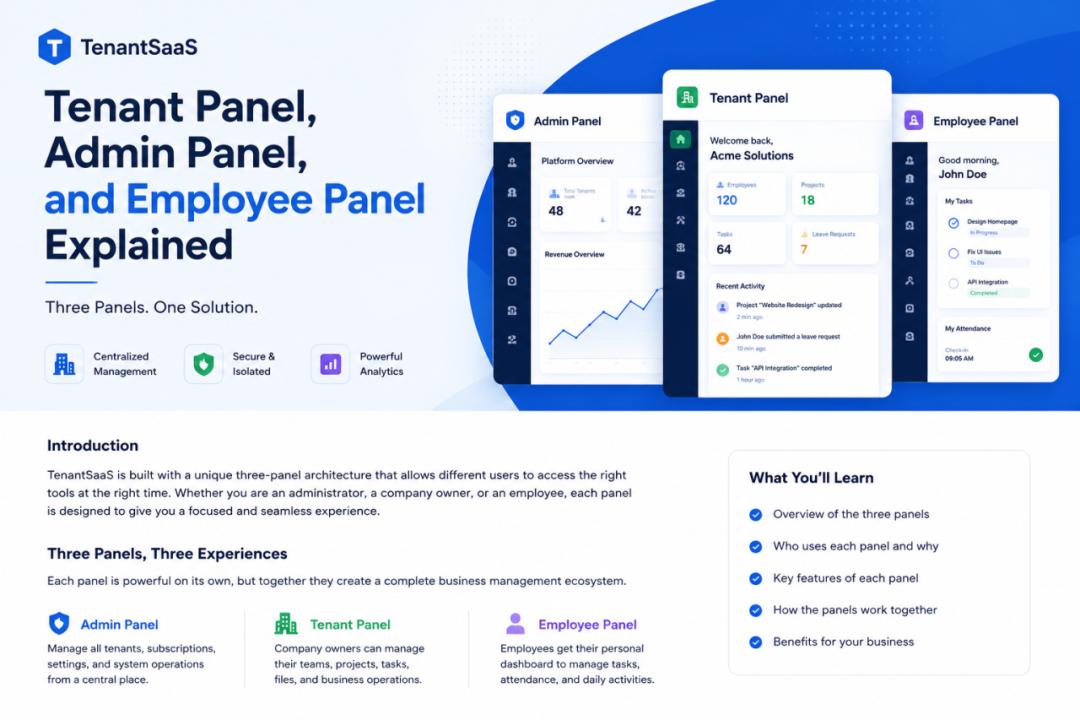
TenantSaaS solves this by separating the platform into three connected panels:
Admin Panel
Tenant Panel
User Panel
Each panel is designed for a different type of user and provides only the tools needed for that role.
This guide explains how the three panels work, what each one contains, and how they create a safer and more organized business workflow.
Why Separate Panels Are Important
Different users have different responsibilities.
A platform administrator may need to manage tenants, subscriptions, and system settings. A company owner may need to manage employees, projects, products, and reports. An employee may only need to view tasks, submit attendance, or request leave.
When these responsibilities are mixed together, several problems can appear:
Users see irrelevant menus
Sensitive information becomes easier to expose
Navigation becomes confusing
Permissions become harder to manage
User may access administrative tools
Company owners may see platform-level settings
Platform administrators may accidentally work inside the wrong context
Separate panels provide a clearer boundary between platform administration, company operations, and employee activities.
The Admin Panel
The Admin Panel is the main control center for the TenantSaaS platform.
It is intended for platform owners, super administrators, and trusted administrative staff.
The Admin Panel provides a system-wide view of TenantSaaS.
Unlike tenant users, administrators can manage records across multiple companies when their permissions allow it.
What Administrators Can Manage
The Admin Panel may include access to:
Tenants and companies
Platform users
Subscription plans
Billing and payments
Coupons
Marketplace activity
Products
Orders
Blog moderation
Contact messages
Platform settings
Notifications
Email templates
Logs
Analytics
Usage limits
Support operations
The exact features depend on the current TenantSaaS implementation and the administrator’s permissions.
Tenant and Company Management
Administrators can review companies created on the platform.
They may be able to:
View company details
Check subscription status
Review account activity
Suspend or reactivate access
Inspect usage limits
Manage company plans
Review administrative issues
This gives the TenantSaaS team the visibility required to operate the platform.
Subscription and Billing Management
The Admin Panel is also responsible for platform-level subscription management.
Administrators may manage:
Free and paid plans
Monthly and annual pricing
Trials
Coupons
Feature limits
Subscription status
Payment gateways
Billing activity
These controls are not shown to regular employees or tenant users because they affect the entire platform.
Blog Moderation
TenantSaaS allows companies to publish blog content on the public website.
Administrators can review and moderate this content.
They may:
View blogs from every tenant
Edit unsuitable content
Reject a blog with a reason
Block a blog
Publish or schedule a blog
Unblock corrected content
This helps TenantSaaS maintain quality and prevent harmful or misleading public content.
Platform Analytics
The Admin Panel can provide system-wide analytics such as:
Number of active tenants
Active subscriptions
Platform revenue
Trial accounts
User growth
Marketplace activity
Storage usage
Platform events
These analytics help the TenantSaaS team understand how the overall platform is performing.
The Tenant Panel
The Tenant Panel is the main business management workspace.
It is intended for:
Company owners
Tenant administrators
Managers
HR staff
Project managers
Authorized team members
Every company has its own tenant workspace.
When a user enters a Tenant Panel, they only see the records and tools belonging to the selected company.
What Companies Can Manage
Depending on the enabled modules and assigned permissions, the Tenant Panel may include:
Company settings
Team members
Employees
Departments
Designations
Roles and permissions
Projects
Tasks
Timesheets
Calendar
Reports
Attendance
Leave requests
Files
Products
Blog posts
Notifications
Analytics
Subscription information
The Tenant Panel is where most company-level management happens.
Company Settings
A company owner or authorized administrator can manage business information such as:
Company name
Logo
Contact details
Branding
Notification preferences
Business settings
Team access
Workspace configuration
These settings apply only to the current tenant.
Another company using TenantSaaS can maintain completely different settings.
Team and User Management
Tenant administrators can invite users and control their workspace access.
They may:
Add team members
Assign roles
Grant permissions
Remove access
Connect users with employee records
Review workspace activity
This gives the company control over who can access its business data.
Employee Management
The Tenant Panel can also contain the company’s HR management tools.
Authorized users may manage:
Employee profiles
Departments
Designations
Managers
Attendance
Leave
Holidays
Policies
Onboarding
Employment details
This creates a structured employee system instead of depending entirely on spreadsheets.
Project Management
Companies can organize projects and daily work inside the Tenant Panel.
They may be able to:
Create projects
Assign team members
Add tasks
Set priorities
Track deadlines
Record timesheets
Review progress
View reports
Use calendar views
This allows managers to monitor work without mixing project data between different companies.
Product and Marketplace Management
Tenants may also manage products they want to offer through the marketplace.
Depending on the available features, they may:
Create products
Upload product images
Set pricing
Publish listings
Review orders
Manage subscriptions
Track marketplace activity
Every product remains linked to the company that created it.
Blog Management
Companies can publish their own content through the Tenant Panel.
Authorized tenant users can:
Create blog posts
Save drafts
Publish immediately
Schedule future publication
Upload featured images
Add attachments
Review moderation feedback
If a blog is blocked by an administrator, the tenant can view the moderation reason but cannot edit or publish the blog until it is unblocked.
Tenant Analytics
The Tenant Panel may show analytics related to the current company, such as:
Active projects
Pending tasks
Employee attendance
Leave requests
Product activity
Storage usage
Subscription limits
Recent business activity
These analytics help company managers understand what is happening inside their workspace.
The User Panel
The User Panel is designed for regular employees and company users.
It provides a simpler and more focused experience than the Tenant Panel.
Employees do not need access to every company setting or administrative feature.
They only need the tools required to complete their work.
What User Can Access
Depending on their role and permissions, employees may be able to:
View assigned tasks
Update task status
Check projects
Submit timesheets
Punch in and out
View attendance
Request leave
Read company announcements
Access assigned files
View notifications
Update their profile
Review personal activity
This keeps the Employee Panel clean and easy to understand.
Attendance and Punch In
Employees may use the Employee Panel to manage attendance.
They can:
Punch in
Punch out
View attendance history
Review working hours
Check attendance status
Managers and HR staff can review this information from the Tenant Panel.
This separates employee actions from administrative attendance management.
Leave Requests
An employee may submit a leave request through the Employee Panel.
The request can then be reviewed by an authorized manager or HR user in the Tenant Panel.
A typical workflow may be:
The employee submits a leave request.
The manager receives a notification.
The manager reviews the request.
The request is approved or rejected.
The employee sees the updated status.
This creates a clear process without relying on emails or informal messages.
Tasks and Projects
Employees can access the work assigned to them.
They may be able to:
View task details
Check deadlines
Update progress
Add comments
Submit timesheets
Upload relevant files
Mark work as completed
They should not automatically see every project in the company.
Access depends on assignments, roles, and permissions.
Personal Information
The Employee Panel may also allow users to manage personal details such as:
Profile information
Avatar
Contact information
Password
Notification preferences
Sensitive employment information should only be shown when appropriate and authorized.
How the Three Panels Work Together
The three panels are separate, but they are connected.
A typical flow may look like this:
A platform administrator manages TenantSaaS through the Admin Panel.
A company owner creates and manages a company in the Tenant Panel.
The owner adds employees and assigns roles.
Employees use the Employee Panel for their daily work.
Managers review employee and project activity in the Tenant Panel.
Platform administrators monitor the overall system in the Admin Panel.
Each user works inside the correct level of the platform.
Example Workflow
Consider a company called Alpha Solutions.
Admin Panel
The TenantSaaS administrator can:
View Alpha Solutions as a tenant
Review its subscription
Check platform usage
Moderate its public blog posts
Handle support or billing issues
Tenant Panel
The owner of Alpha Solutions can:
Add departments
Create employee records
Invite users
Assign managers
Create projects
Review reports
Publish company blogs
User Panel
An employee of Alpha Solutions can:
Punch in
View assigned tasks
Submit timesheets
Request leave
Read notifications
The employee cannot manage subscriptions or change company-wide settings unless given specific permission.
Better Security Through Separation
Separate panels improve security because access is based on responsibility.
The system can apply:
Authentication guards
Tenant scoping
Roles
Permissions
Policies
Resource authorization
Record ownership checks
This prevents a regular employee from accessing platform administration and prevents tenant users from accessing another company’s records.
Better User Experience
Separate panels also improve usability.
A regular employee does not need to navigate through billing, marketplace, company settings, or system logs.
A platform administrator does not need employee punch-in controls.
Each user sees a dashboard that matches their work.
This reduces:
Confusion
Training time
Accidental changes
Navigation complexity
Permission mistakes
Can One User Access More Than One Panel?
Yes, depending on their role.
For example:
A TenantSaaS administrator may access the Admin Panel.
A company owner may access the Tenant Panel.
A company owner who is also an employee may access employee-related features.
A manager may have access to both management and personal employee tools.
Access should always be controlled through proper authentication and permissions.
A panel should not be available simply because a user knows its URL.
Choosing the Correct Panel
The correct panel depends on what the user needs to do.
Use the Admin Panel to:
Operate the TenantSaaS platform
Manage all tenants
Control plans and subscriptions
Review system-wide analytics
Moderate public content
Use the Tenant Panel to:
Manage a specific company
Control employees and teams
Manage projects
Configure company settings
Publish products and blogs
View company analytics
Use the User Panel to:
Complete assigned work
Track attendance
Submit timesheets
Request leave
View personal notifications
Final Thoughts
A multi-tenant platform needs clear boundaries between platform owners, companies, and employees.
TenantSaaS uses the Admin Panel, Tenant Panel, and Employee Panel to provide those boundaries.
The Admin Panel controls the overall platform.
The Tenant Panel manages company operations.
The Employee Panel gives employees a focused workspace for their daily activities.
Together, these panels create a system that is easier to use, safer to manage, and more suitable for growing businesses.
Explore TenantSaaS
Create your company, invite your team, assign roles, and give every user the right workspace for their responsibilities.
Start with TenantSaaS and manage your platform, company, and employee workflows through one connected system.