Built for busy operators
Founders, managers, and team members who create the same kinds of records every day: projects, employees, products, users, and settings.
AI Workspace feature
Tell TenantSaaS what you need. AI Workspace turns plain-language instructions into supported actions across projects, tasks, HR, products, users, and workspace settings — always within your permissions and your current workspace.
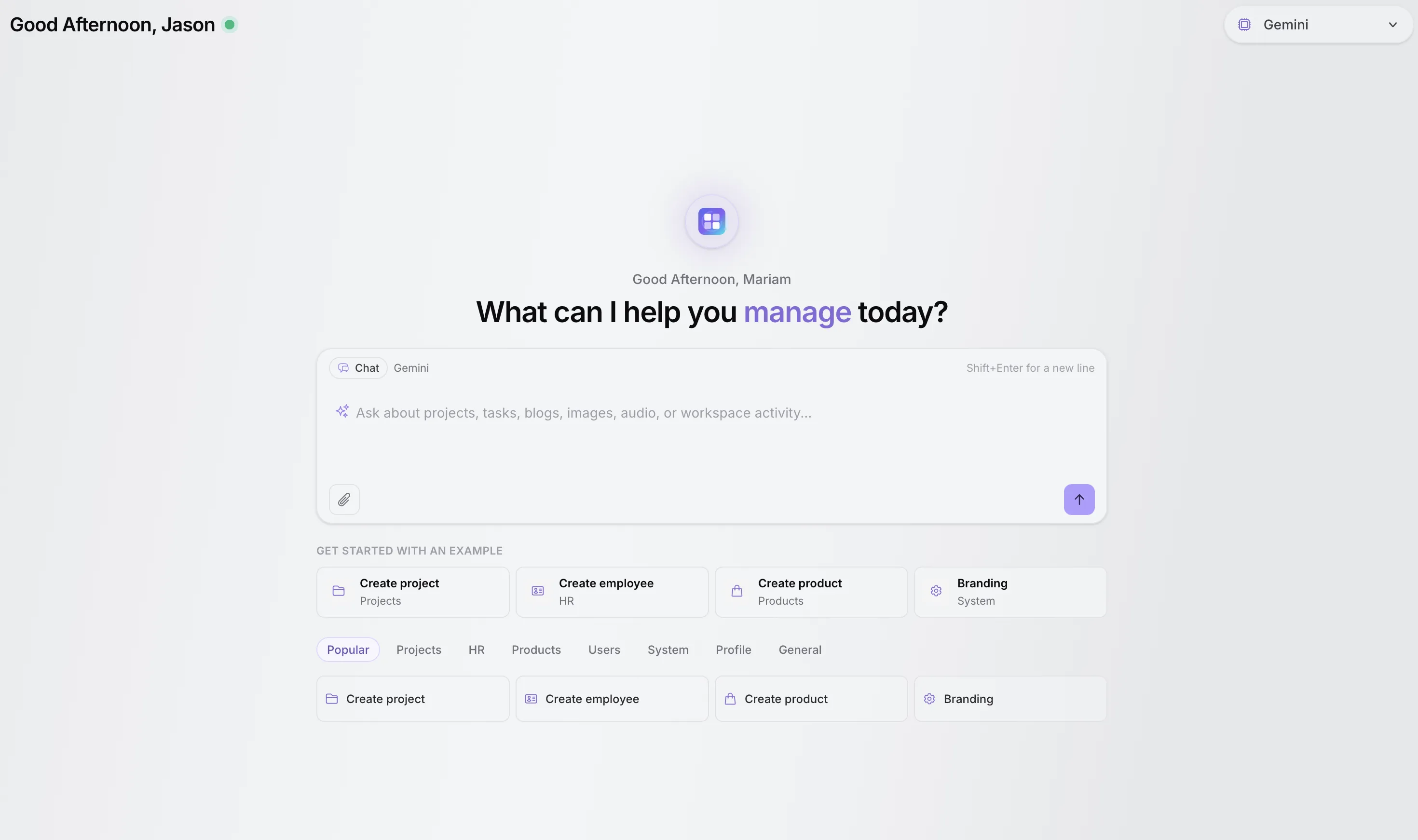
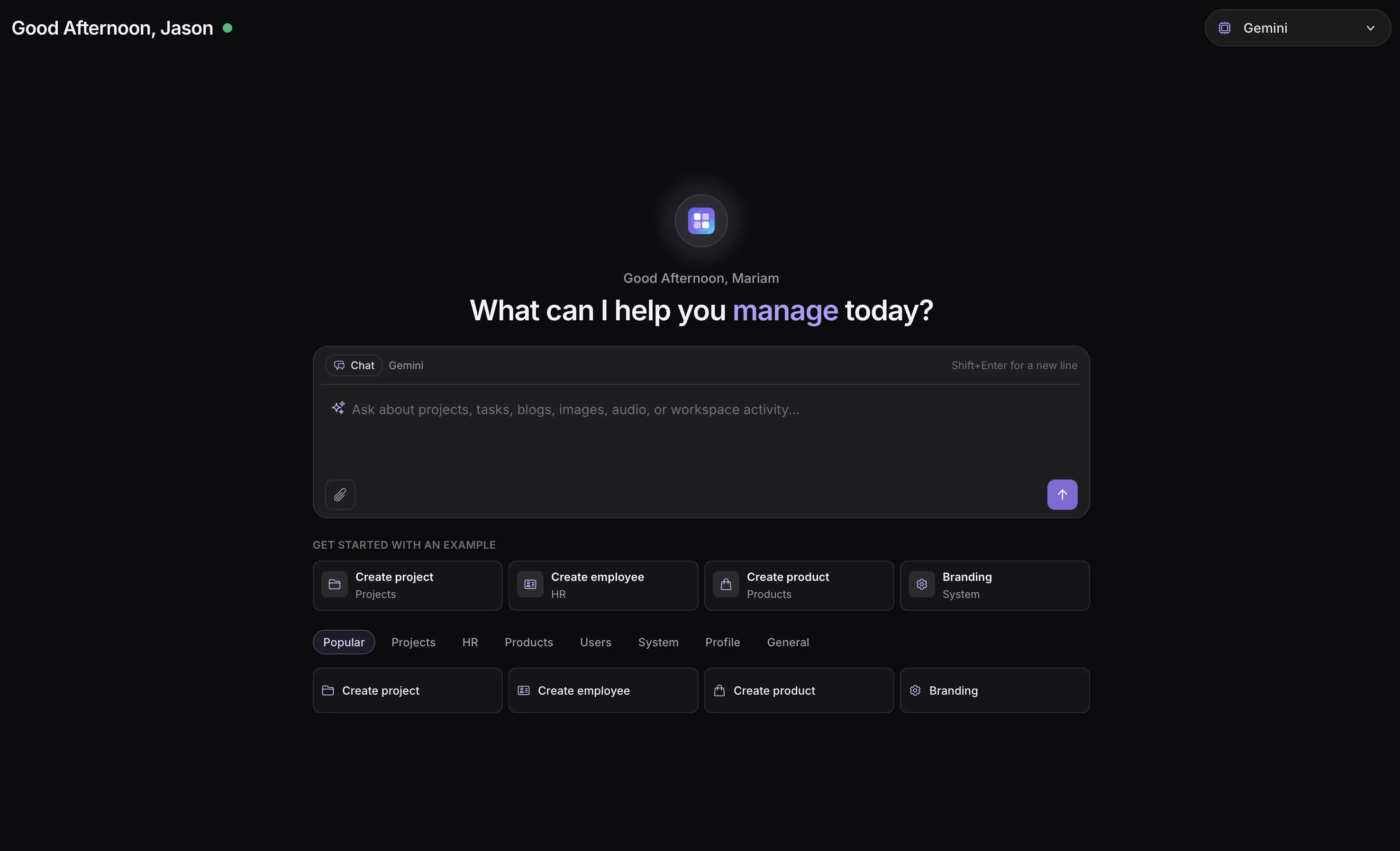
The implemented AI Workspace chat with provider selector, prompt input, suggested actions, and category tabs.
AI Workspace Overview
AI Workspace is a centralized, secure chat interface inside the TenantSaaS tenant panel. Instead of navigating module by module, teams describe supported tasks in natural language and let the assistant do the clicking.
Founders, managers, and team members who create the same kinds of records every day: projects, employees, products, users, and settings.
The assistant uses dedicated tools that write to the same workspace records your Project, HR, Product, and User modules manage.
Conversations and actions are scoped to your active workspace, so the assistant always works with the right company data.
Each action is validated against your roles and policies. The AI cannot do anything your account is not allowed to do.
What You Can Manage
Every category below maps to real AI tools implemented in TenantSaaS. Use AI Workspace to perform supported actions across your TenantSaaS workspace — each connected module remains its own separate feature.
Spin up projects and keep delivery moving without opening a single form.
Create, update, and review tasks across your workspace projects.
Register the everyday HR records your people operations depend on.
Add commerce records while you stay in the conversation.
Grow your team with permission-checked user management actions.
Adjust tenant settings conversationally, with confirmation for sensitive keys.
Keep your own account details current without leaving the chat.
Draft workspace content and request generated media from the same conversation.
Generated images are stored by the separate AI Generated Assets feature and require its permission. Project Management, HR, Products, and User Management remain their own TenantSaaS modules — AI Workspace is a productivity layer on top of them.
Natural-Language Management
These prompts reflect the tools and suggested actions implemented in AI Workspace. The assistant asks for anything required that you leave out.
Projects
“Create a project called Website Redesign with high priority, due at the end of next month.”
Tasks
“Create a task for the onboarding project and assign it to me with a due date this Friday.”
HR
“Create an employee profile for a new backend developer in the Engineering department.”
HR
“Create a leave request for an employee from Monday to Wednesday.”
Products
“Create a product with its SKU, price, and stock quantity.”
Users
“Invite an existing user to this workspace and assign the member role.”
System
“Update the workspace company name and primary color.”
Profile
“Update my profile name and phone number.”
General
“Generate an image for a product announcement banner.”
How It Works
This is the actual flow implemented in the AI Workspace chat, from provider selection to a streamed, stored result.
The chat starts on your workspace default provider, and a header selector lets you switch to any provider your workspace has configured.
Type an instruction or start from a suggested prompt. You can attach files and press Enter to send.
The AI agent matches your request to a supported workspace tool, such as creating a project, an employee, or a product.
The assistant asks for required fields before calling any create or update tool, so records are complete.
Every action checks your user permissions and the active workspace before touching data. Sensitive changes like roles, passwords, and payment keys are summarized for confirmation first.
Responses stream in real time, are stored in your conversation history, and confirm exactly what was created or updated.
Multi-Provider AI
Each workspace configures its own provider API keys, stored encrypted in tenant settings, and chooses a default provider. Users can switch among configured providers from the chat header.
Administrators add provider API keys in tenant settings. Keys are encrypted at rest and never shared across workspaces.
Each workspace sets a default provider, and the chat header selector lets users switch providers for a conversation.
When a provider is rate limited, out of credits, overloaded, or misconfigured, the assistant explains the exact issue and links administrators to the provider settings.
Providers become available once your workspace configures their API keys, and capabilities differ between providers — for example, audio-focused providers handle text-to-speech rather than chat.
Suggested Prompts
The empty chat greets you with popular actions and category tabs — Popular, Projects, HR, Products, Users, System, Profile, and General — each carrying ready-to-send prompts for supported actions.
Create project, create employee, create product, and branding shortcuts sit one click from the input so new users start fast.
Each category tab lists the concrete actions its tools support, from marking attendance to changing localization settings.
Every suggested prompt tells the assistant to ask you for the required fields, so a single click starts a guided record creation.
Permission-Aware AI
AI Workspace does not bypass your access model. Permission validation runs on every tool call, so the AI can only do what the signed-in user is allowed to do.
Every AI tool validates the authenticated user and the relevant permission or policy before performing an action. Denied requests return a clear explanation instead of a change.
Actions and conversation history are scoped to the active workspace. The assistant works with your current tenant's records only.
Authorized and denied AI actions are recorded in the activity log with the acting user, workspace, and action, so administrators can review what the assistant did.
For roles, permissions, password changes, payment keys, and security settings, the assistant summarizes the exact change and asks for confirmation before applying it.
Access to AI Workspace itself is permission-controlled, and employee accounts require an explicit permission before they can open it.
AI provider API keys are stored encrypted in tenant settings and configured per workspace by administrators.
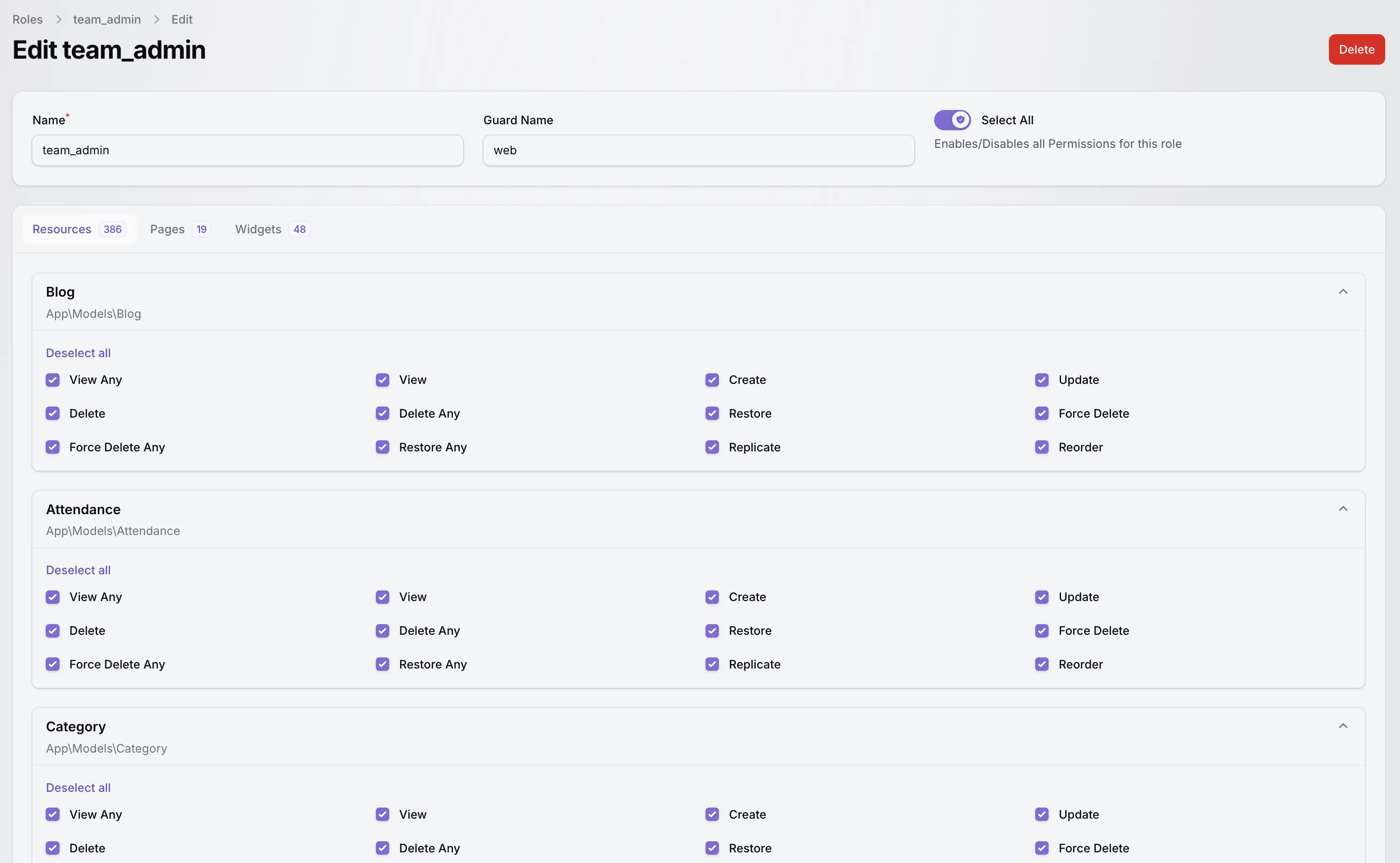
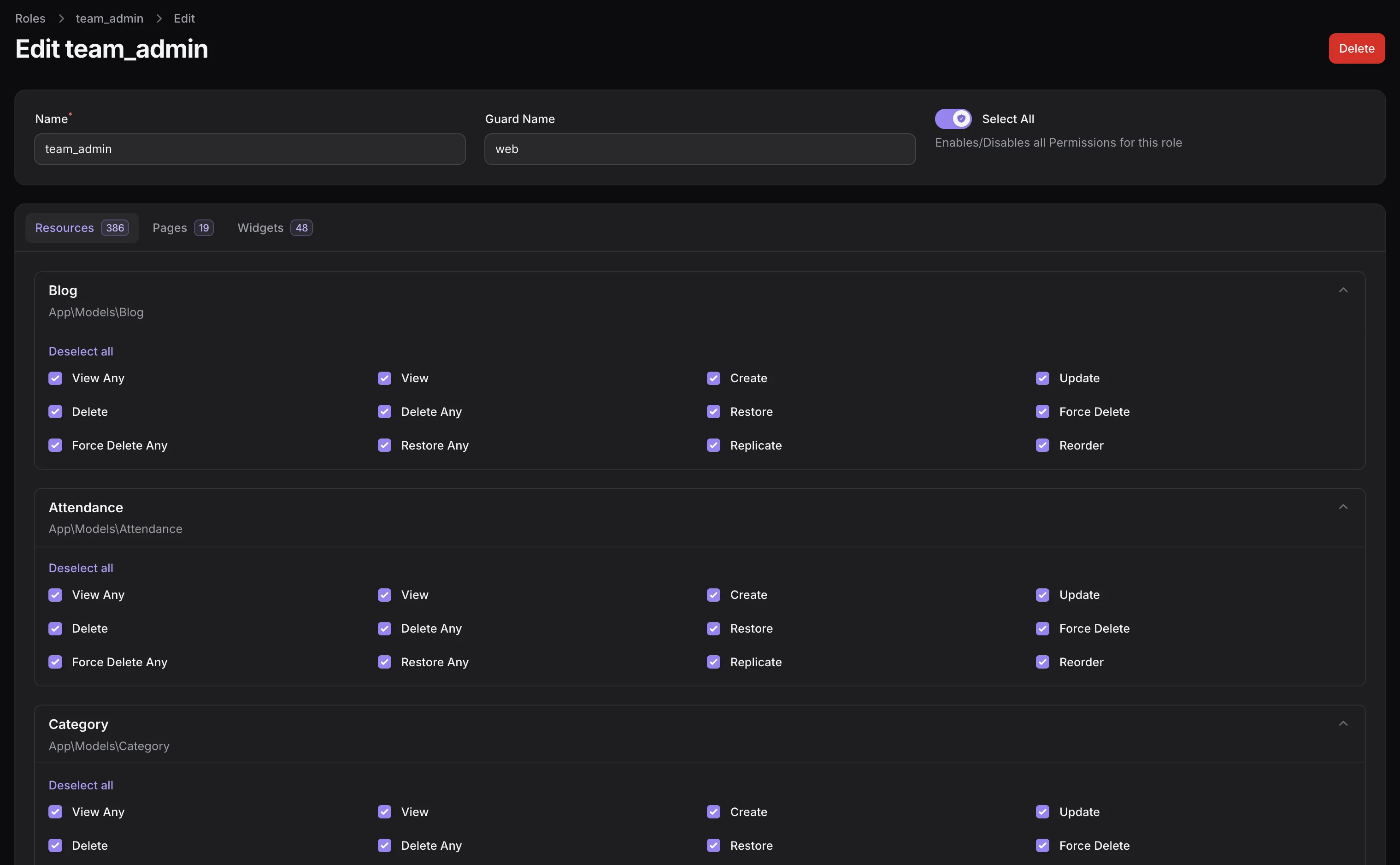
The same workspace roles and permissions that govern module access also govern AI Workspace actions.
Tenant and Workspace Context
AI Workspace runs inside the tenant panel, so the active workspace defines what the assistant sees and where its actions land.
Tools create and update records for the active workspace only, and the assistant is instructed to keep every action inside it.
Chat history is stored per user within the current workspace, so switching companies switches context too.
The provider, its API key, and the default selection all come from the active workspace's own tenant settings.
Files and Attachments
Attach documents or images to a message and the assistant passes them to your selected AI provider for analysis alongside your instruction.
Each attachment can be up to 10 MB. Attached images get compact previews right in the conversation.
JPG, JPEG, PNG, WebP, GIF, PDF, TXT, Markdown, CSV, JSON, DOC, and DOCX files are accepted.
Images are sent as visual input and documents as text sources, matching what your selected provider supports.
Attachments are stored with your message history, so you can reopen and download them later.
Conversation Experience
Everything below is implemented in the AI Workspace conversation view, so teams can keep working without hopping between screens.
Real Workspace Examples
Each example follows the implemented flow: the prompt you send, what the assistant validates, and the action that results.
Project example
“Create a new website redesign project with high priority.”
HR example
“Create an employee profile for a new backend developer.”
Product example
“Add a new subscription product with its pricing details.”
User example
“Invite jane@yourcompany.com to this workspace as a member.”
Branding example
“Update our workspace company name and primary color.”
Product Preview
The dark workspace aesthetic of the real interface: provider selection, a command-style prompt input, and suggested actions organized by business area.
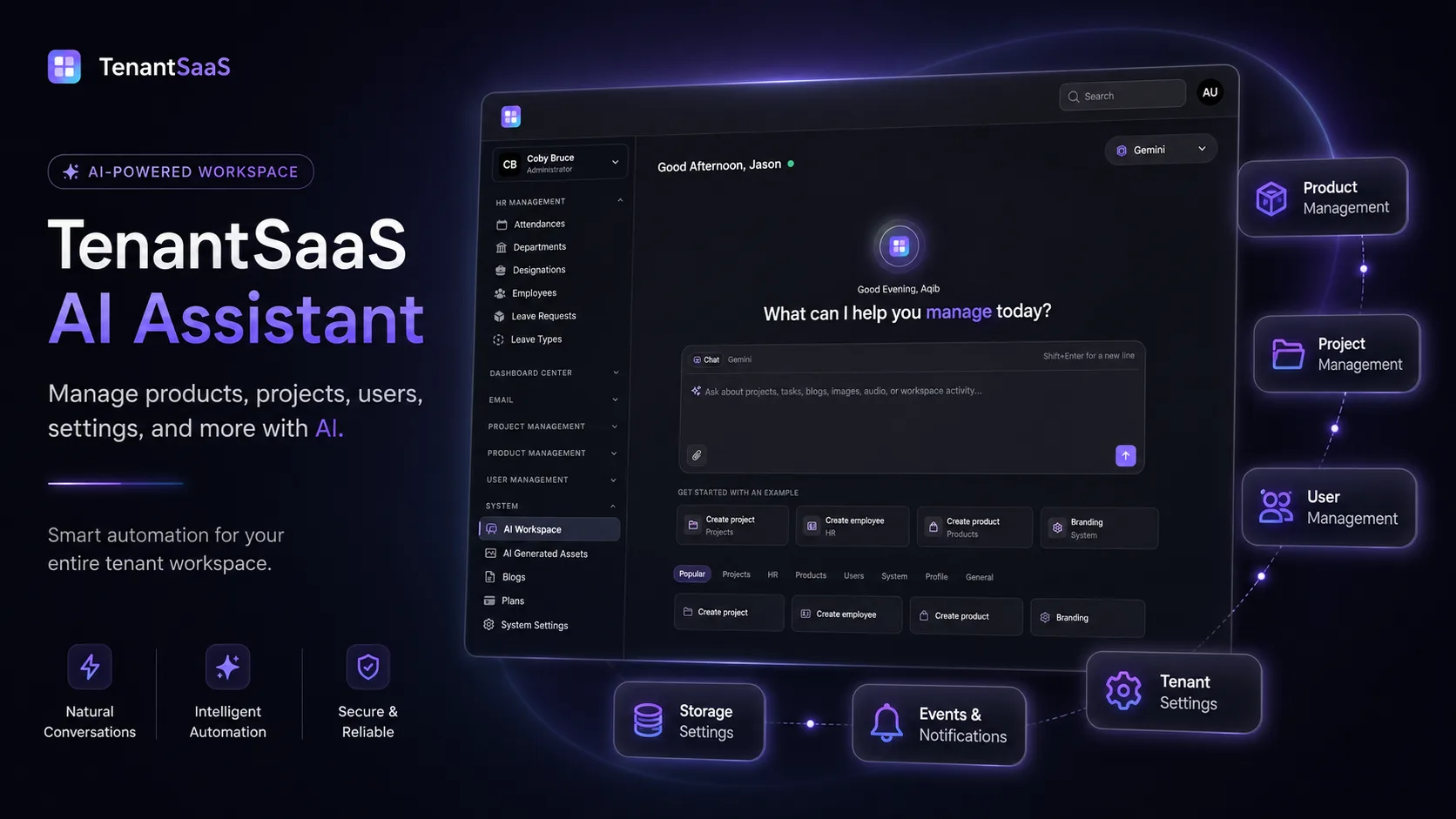
AI Workspace inside the tenant panel, alongside the separate Project, Product, User, and Settings modules it can act on.
Switch among your workspace's configured AI providers from the chat header.
A command-style input with attachments, Enter to send, and Shift+Enter for new lines.
Popular one-click prompts such as create project, create employee, create product, and branding.
Projects, HR, Products, Users, System, Profile, and General prompt groups mirror the supported tools.
Benefits
Practical gains grounded in what the feature actually does — no inflated automation promises.
Create records across projects, HR, products, and users from one conversation instead of opening each module and form.
Describe the record once. The assistant collects required fields and performs the supported action for you.
Category tabs and popular actions teach new team members what the assistant can do from day one.
Configure the AI provider that fits your workspace, switch per conversation, and keep API keys encrypted in tenant settings.
The assistant works within your existing roles and policies, so AI convenience never becomes an access loophole.
Conversations are saved and AI actions are written to the activity log, keeping AI-driven changes accountable.
A Productivity Layer
Module interfaces remain the home for detailed work. AI Workspace is the faster path for the repetitive create-and-update tasks in between.
Both paths write to the same workspace records — pick whichever fits the moment.
Documentation
No dedicated public AI Workspace documentation route exists yet, so this page links only to existing public developer and open-source pages.
FAQ
Answers are based on the AI Workspace implementation that exists in this codebase.
AI Workspace is a chat-based assistant inside the TenantSaaS tenant panel. You describe a task in plain language, and the assistant performs supported actions across your workspace, such as creating projects, tasks, HR records, products, users, roles, and tenant settings.
The current implementation includes tools for projects, tasks, HR records (employees, departments, designations, leave types, leave requests, attendance), product categories, products, simple orders, workspace users, invitations, roles, tenant settings, your own profile, blog posts, image generation, and text-to-audio.
The provider selector includes Anthropic, Azure OpenAI, AWS Bedrock, Cohere, DeepSeek, ElevenLabs, Gemini, Groq, Jina, Mistral, Ollama, OpenAI, OpenRouter, Voyage AI, and xAI. A provider becomes usable once your workspace configures its API key, and capabilities vary by provider.
Yes. Each workspace stores its own encrypted provider API keys and default provider in tenant settings, and users can switch among configured providers from the chat header.
Yes. Every tool checks the authenticated user's permissions or policies within the active workspace before acting. When a check fails, the assistant explains that permission is missing instead of making the change.
Yes. Authorized and denied AI actions are recorded in the activity log together with the acting user, workspace, and requested action.
Yes. Each message supports up to five attachments of up to 10 MB each, covering common image and document formats such as JPG, PNG, WebP, GIF, PDF, TXT, Markdown, CSV, JSON, DOC, and DOCX. Attachments are passed to the selected AI provider for analysis.
Yes. Messages are stored per user within the current workspace, and your recent conversation history is loaded when you return to AI Workspace.
Yes. Assistant responses stream into the conversation as they are generated, with markdown formatting and syntax-highlighted code blocks.
The assistant shows a clear notification explaining the issue, such as rate limiting, insufficient credits, provider overload, or a missing API key, with a shortcut for administrators to review the provider configuration in tenant settings.
Yes. For roles, permissions, password changes, payment keys, and security settings, the assistant summarizes the exact change and asks for confirmation before applying it.
No. AI Generated Assets is a separate TenantSaaS feature. AI Workspace can request image generation, and that capability is governed by the AI Generated Assets permission, but the asset library remains its own module.
Yes. AI Workspace follows the tenant panel theme and works in both light and dark mode.
Create a TenantSaaS workspace, configure at least one AI provider API key in tenant settings, then open AI Workspace from the System navigation group and start with a suggested prompt or your own instruction.
Use your configured AI provider to work with supported TenantSaaS modules — projects, HR, products, users, and settings — from one centralized, permission-aware workspace.