Multiple pipelines
Create separate pipelines for different products, regions, or sales motions, each with its own ordered stage list.
CRM Feature
Design as many pipelines as your sales motions need, order their stages with probabilities and Open, Won, or Lost types, and move deals across a visual board that shows open counts and open value per pipeline.
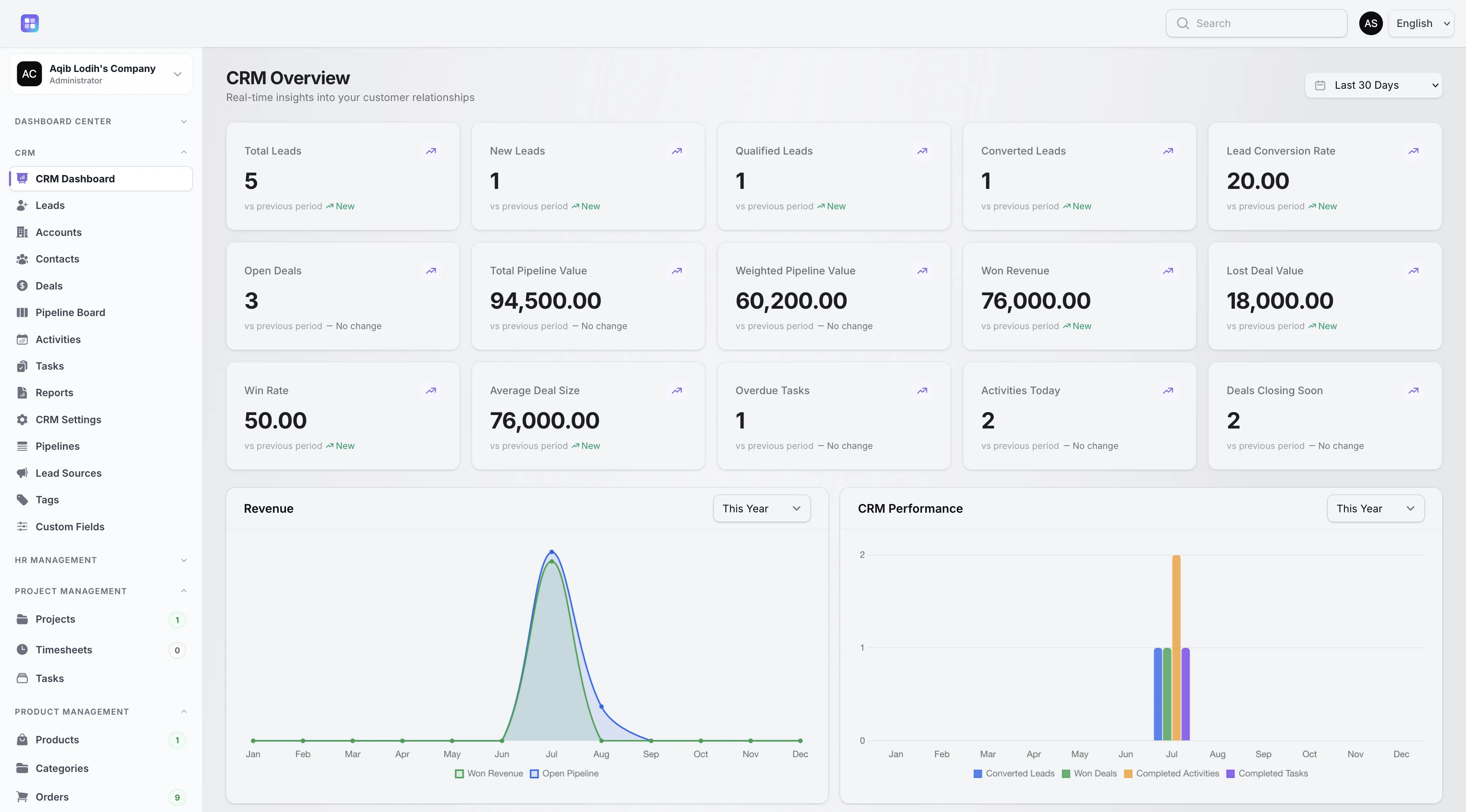
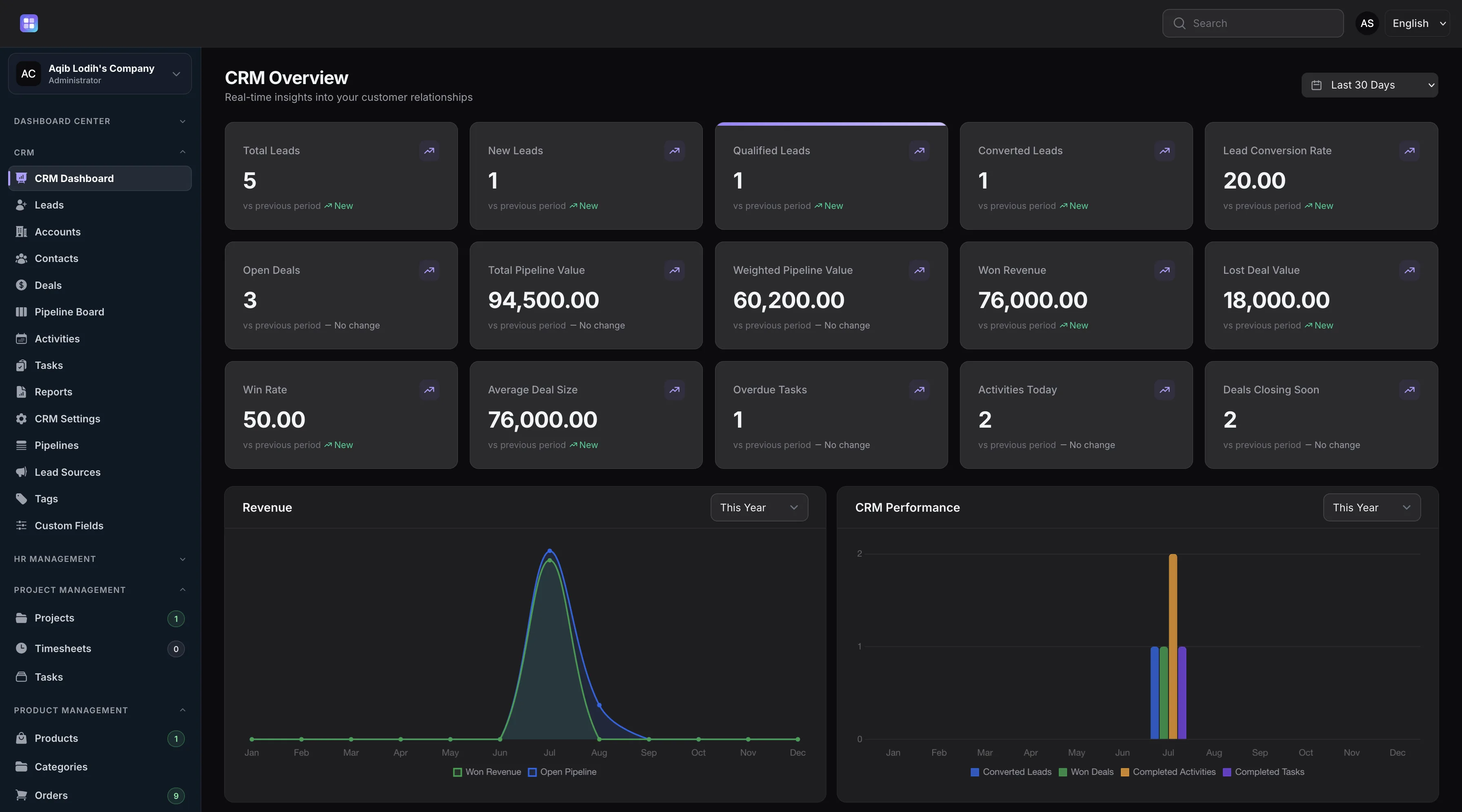
Pipeline value, weighted value, and win rate on the dashboard reflect how deals move through your stages.
Overview
Pipelines in TenantSaaS CRM are fully configurable per workspace. Each pipeline has a name, description, sort order, an active flag, and optionally a default flag that decides which pipeline the board opens first. Stages are managed on the pipeline itself: ordered, colored, individually activated, given a win probability, and typed as Open, Won, or Lost.
The pipeline board turns that configuration into a working view: pick an active pipeline, see its stages as columns with the most recent open deals as cards — each showing its account, owner, and close date — and move deals between stages. Every move is validated, recorded in the deal’s history, and reflected in the board’s open-deal count and open value totals.
Capabilities
Every capability below reflects functionality implemented in the TenantSaaS CRM module.
Create separate pipelines for different products, regions, or sales motions, each with its own ordered stage list.
Stages carry a sort order, color, active flag, win probability, and an Open, Won, or Lost type that drives deal status.
Mark one pipeline as the default so the board and CRM settings start from your primary sales process.
Review stage columns with deal cards showing owner, account, and close date, plus open deal count and open value in the toolbar.
Moving a deal validates the target stage, updates probability and status, records stage history, and confirms with a notification.
Stage management guards against breaking stages that already have deals attached to them.
Record Management
How It Works
This flow follows the statuses, actions, and events implemented in the CRM module.
Name the pipeline, describe it, and mark it active. Optionally set it as the workspace default.
Add stages with sort order, color, probability, and an Open, Won, or Lost type that matches your process.
Create deals into a pipeline stage directly, or send them there automatically during lead conversion.
Open the pipeline board, review stage columns and totals, and move deals as conversations progress.
Deals reaching Won or Lost stages update statuses and timestamps, and pipeline reports recalculate per-stage totals.
Dashboard & Analytics
These metrics and reports are part of the implemented CRM dashboard and reports pages.
See the full picture on the CRM Dashboard and CRM Reports pages.
Metrics and charts from the implemented CRM dashboard.
Access Control
The pipeline board and pipeline management are protected by page and resource permissions, and board deal visibility applies the same owner-based rules as the deal list.
FAQ
Answers reflect the CRM implementation that ships with TenantSaaS.
Yes. Workspaces can define multiple pipelines, each with its own stages, and mark one as the default for the board.
Stages are typed Open, Won, or Lost. Moving a deal into a Won stage marks it won with a timestamp; a Lost stage requires a lost reason; Open stages update the deal’s probability.
Active stages as columns, recent open deals as cards with account, owner, and close date, plus open deal count and open value totals for the selected pipeline.
The move is validated against the workspace and pipeline, the deal’s probability and status update, the change lands in stage history, and a confirmation notification appears.
Yes. Stages have explicit sort orders and active flags, and safeguards protect stages that already contain deals.
Yes. Deals adopt their stage’s probability, which feeds the weighted pipeline value metric on the CRM dashboard.
Start a free TenantSaaS workspace and manage sales pipelines alongside the rest of the CRM module.