Lead capture with full context
Record name, company, job title, email, phone, mobile, website, source, estimated value, currency, and notes on a structured lead form.
CRM Feature
Capture new leads with source, rating, and estimated value, assign them to team members, work them through clear statuses, and convert qualified leads into accounts, contacts, and deals without retyping anything.
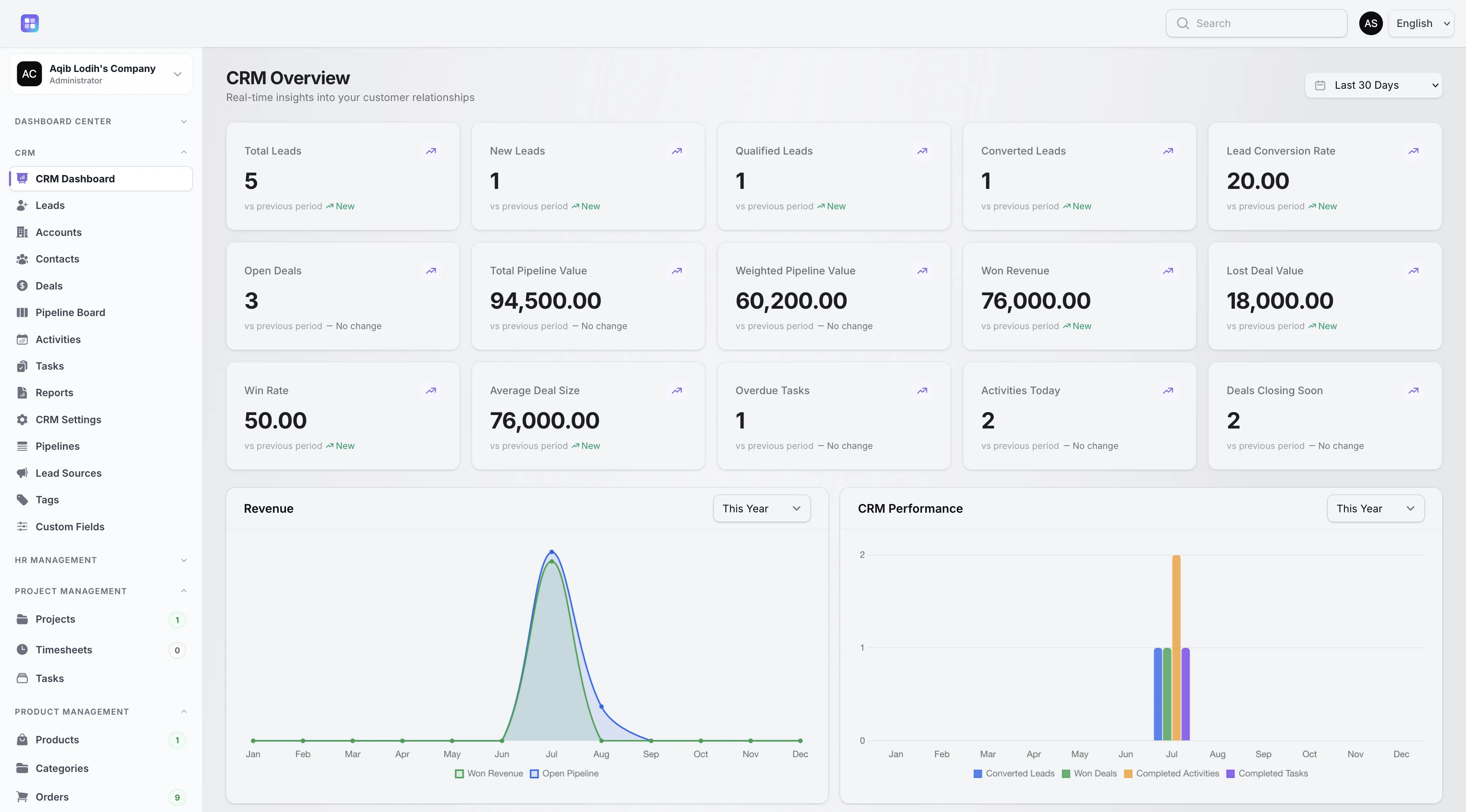
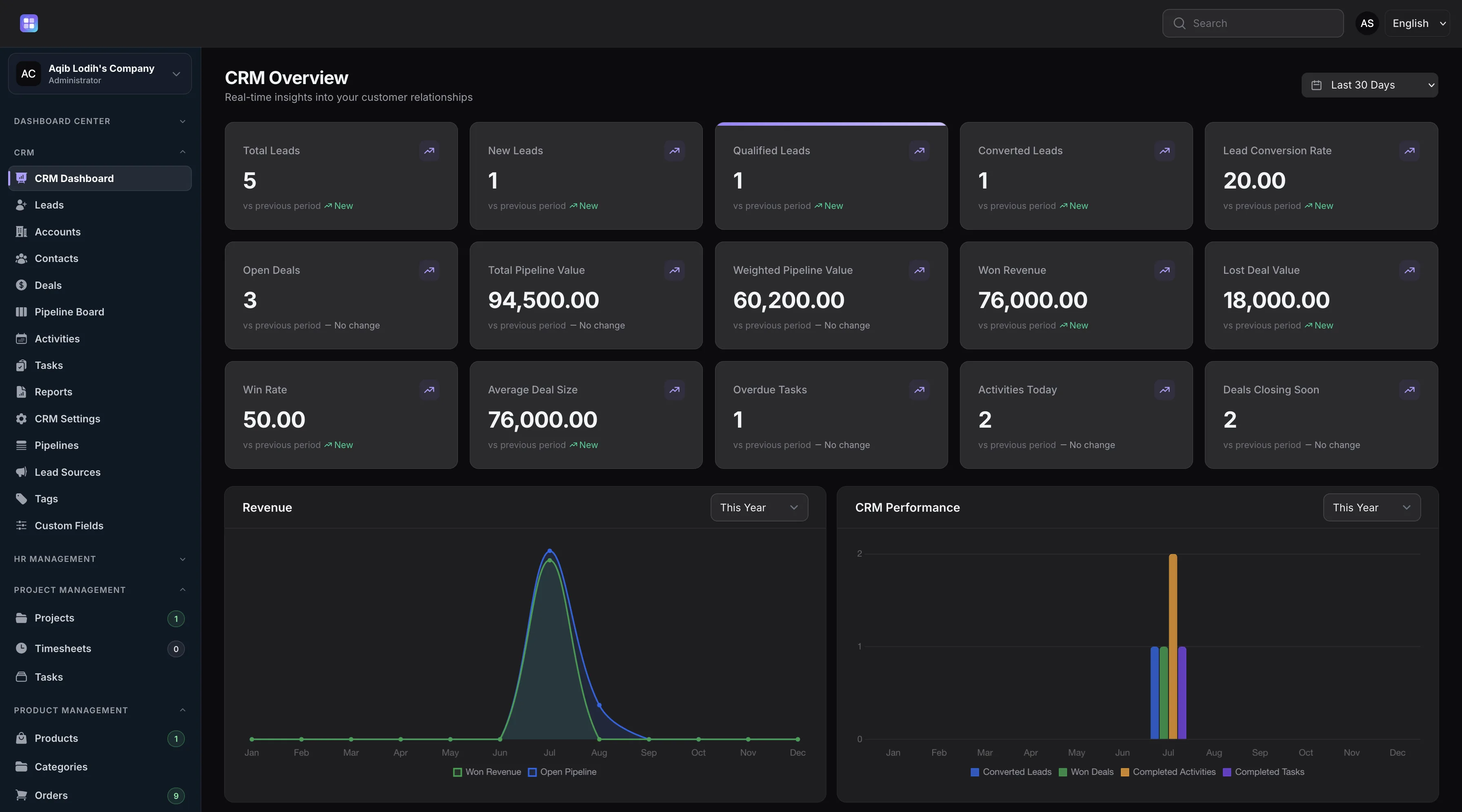
Lead totals, qualified leads, converted leads, and conversion rate reported from real lead records.
Overview
Every lead in TenantSaaS CRM carries the details a sales team actually works with: name, company, job title, contact channels, website, a configurable lead source, an assignee from your workspace, an estimated value with currency, and a description. Each lead also receives an automatic reference code so it can be found instantly from global search.
Leads move through seven implemented statuses — New, Contacted, Working, Qualified, Unqualified, Converted, and Lost — and carry a Hot, Warm, Cold, or Unrated rating. When a lead is marked Lost or Unqualified, the form requires a lost reason, so your team keeps the context behind every closed lead.
Capabilities
Every capability below reflects functionality implemented in the TenantSaaS CRM module.
Record name, company, job title, email, phone, mobile, website, source, estimated value, currency, and notes on a structured lead form.
Assign each lead to a workspace member, filter for unassigned leads, and keep accountability visible in every table view.
Track leads through New, Contacted, Working, Qualified, Unqualified, Converted, and Lost, with Hot, Warm, Cold, or Unrated ratings.
Define your own lead source list — ordered and activated per workspace — and attach a source to every lead for reporting.
Convert a qualified lead into an account, a contact, and an optional open deal in a chosen pipeline stage, in a single guided action.
Lost and Unqualified leads require a lost reason, keeping the “why” attached to every lead that does not move forward.
Log activities, create tasks, and add notes directly from the lead through built-in related-record panels.
A workspace setting enables duplicate detection, helping teams avoid entering the same lead twice.
Record Management
How It Works
This flow follows the statuses, actions, and events implemented in the CRM module.
A new lead starts in the New status with its source, rating, estimated value, and contact details recorded.
Pick an assignee from your workspace. Assignment notifications and visibility rules keep the right person responsible.
Move the lead through Contacted and Working while logging calls, emails, meetings, notes, and follow-up tasks against it.
Mark the lead Qualified to move forward, or Unqualified/Lost with a required reason so nothing closes silently.
Conversion creates or reuses an account, creates a contact, optionally opens a deal in a selected pipeline stage, copies tags across, and stamps the conversion time.
Dashboard & Analytics
These metrics and reports are part of the implemented CRM dashboard and reports pages.
See the full picture on the CRM Dashboard and CRM Reports pages.
Metrics and charts from the implemented CRM dashboard.
Access Control
Lead access is enforced by tenant-scoped policies, not just navigation. Workspace owners, CRM managers, and team admins can see every lead; other users see leads assigned to them or created by them.
FAQ
Answers reflect the CRM implementation that ships with TenantSaaS.
Leads move through New, Contacted, Working, Qualified, Unqualified, Converted, and Lost. Lost and Unqualified leads require a lost reason.
Converting a lead creates or reuses a company account, creates a contact from the lead’s details, and can open a deal in a pipeline stage you choose. Tags are copied across, the lead is marked Converted, and the assignee is notified.
Yes. Every lead carries a Hot, Warm, Cold, or Unrated rating, and tables can be filtered by multiple ratings at once.
Yes. Leads are assigned to workspace members, an “unassigned” filter surfaces leads without an owner, and assignment drives who can see the lead when broad visibility is not granted.
Lead sources are configured per workspace with their own names, ordering, and active flags. A default source can be set in CRM settings.
Yes. Leads store an estimated value and a currency, and that value seeds the deal amount if you create a deal during conversion.
Yes. Every lead is scoped to its workspace, and CRM policies verify workspace membership before showing or changing a lead.
A duplicate detection setting can be enabled per workspace to help teams avoid capturing the same lead twice.
Start a free TenantSaaS workspace and manage leads alongside the rest of the CRM module.